In this topic, you will learn how to whitelist the IP addresses of Cloud4Wi services in Microsoft Entra ID so that you can bypass multi-factor authentication (MFA) when accessing Entra ID services from Captive Portals.
MFA based on Conditional Access
In this section, you will learn how to bypass MFA based on Microsoft Conditional Access.
- Open your Azure Portal dashboard.
-
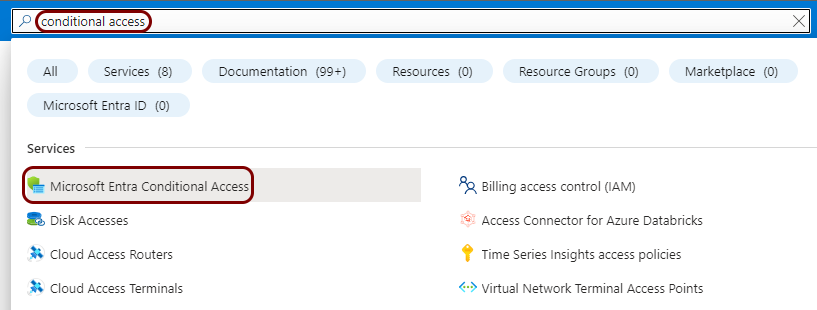
In the Search resources, services, and docs field, start typing conditional access, and then click on the Microsoft Entra Conditional Access entry listed below.
-
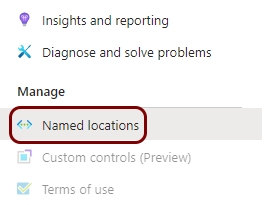
In the left-hand side menu of the Conditional Access pane, click on the Named locations option.
-
In the top menu, click on the + IP ranges location button.

-
In the New location (IP ranges) pane, in the Name field, enter a name for the new range, and then click on the + button to add IP ranges. When done, click on the Create button below.
In this example, we used the name Cloud4Wi but you can use any name you like.
- Enter the following IP : 54.247.117.188
- Enter the following IP : 54.247.117.188
-
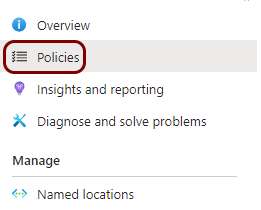
In the left-hand side menu of the Conditional Access pane, click on the Policies option.
-
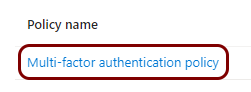
Find the policy that you want to edit in the list of existing policies and click on its name.
Note:
Select the policy that has multi-factor authentication enabled, where you need to bypass MFA to gain access to Cloud4Wi services.
-
In the pane for the selected policy, click on Conditions > Locations > Configure > Yes > Exclude > Selected locations > Select, and in the Select pane, select the IP range you just created, click on the Select button, and then click on the Save button.
-
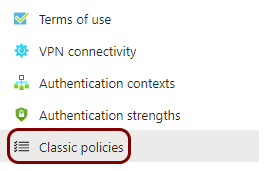
Optional: If classic policies are configured, whitelist the IP addresses in classic policies, too.
Legacy MFA
In this section, you will learn how to bypass Microsoft’s legacy MFA (Microsoft Online Services).
- Open your Azure Portal dashboard.
-
In the Azure Portal main menu, click on the Microsoft Entra ID option.
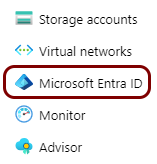
You can access the main menu by clicking on the icon in the top left corner of the Azure Portal.
-
In the left-hand side menu, click on the Manage > Users option.
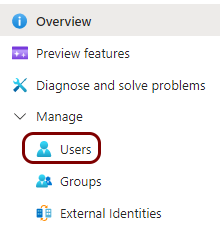
-
Optional: In the left-hand side menu of the Users pane, click on the All users option if it’s not selected (it is selected by default).
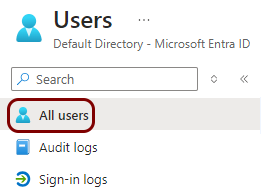
-
In the top menu of the Users pane, click on the Per-user MFA option.

-
Optional: Check if any users are configured with legacy MFA:
-
In the Multi-Factor Auth status field, select the Enabled option and see if any users are listed below.

-
In the Multi-Factor Auth status field, select the Enforced option and see if any users are listed below.

If no users are configured with legacy MFA, you may skip the next step.
-
-
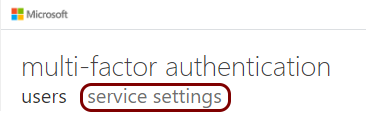
Under the multi-factor authentication pane title, click on the service settings option.
-
In the trusted ips section, enter the IP 54.247.117.188 in the CIDR notation and then click on the Save button.